
This page is currently written based on the use of an Android phone. I don't have an iPhone, and am not familiar with them. Most of the information should still apply, but if you have an iPhone and get stuck, please reach out to someone familiar with iPhones.
What Is Email
 Email is a way to send letters back and forth through the computer. When you
send an email, you send the message to one or more email addresses,
which is a special series of letters, numbers, and symbols with the special
character @ in it.
Email is a way to send letters back and forth through the computer. When you
send an email, you send the message to one or more email addresses,
which is a special series of letters, numbers, and symbols with the special
character @ in it.
Email is different from chat messages. Chat is like talking to someone; you say something, and the other says something back, and you go back and forth like that to have a conversation.
Email is to send a whole message to others. It is often many paragraphs long, sometimes many pages. Everything you want to say is put into a single message, and when you’re ready, you send it all as one message.
A lot of companies and institutions, like schools and lawyers, prefer email, because everything is in a single message. They can read the message, do something with it, and then be done with it.
A word of warning: Different phones, and different versions of phones, may look different. If what you see doesn’t exactly match what is described here, look for something similar.
Why Do I Want Email
A lot of places ask for an email address because it is easier for them to communicate by email. Schools, at least the ones in Howard County, communicate almost exclusively through email.
Email messages are easier for information you want to keep and go back to. You can organize your email messages (more about that later) and find back emails from many years ago. I have emails going back almost 30 years, which I can search through and find information in.
Start: Get an Email Account
If you have an Android phone, chances are you already have an email address. You can find it in Settings:
- Open the Settings app
- Scroll down to Google (Services & preferences) and select it
- Your email account is listed right at the top, it usually is <some name>@gmail.com.
If you have an iPhone, you can skip this section for now and go to the next section The Email App. You can install the Google email app from the Apple app store, and when you open that, you will be prompted to connect to an existing account, or create a new account. At that point, come back here and follow the steps to create a new gmail account.
To create a new email account:
- Go to the Settings app.
- Select Account
- Select Add an Account (Agregar cuenta)
- Select to add a Google account
- This will start the Google account app
- Select Create an account
- Select For personal use (Para uso personal)
- Enter your name and last name, and click Next
- Enter your date of birth and gender
- Select one of the suggested email addresses, or create your own.
- Enter a password
- Connect your phone number (or you can choose to skip)
- Accept the privacy statement
- Confirm the setup
The Email App (Gmail)
 I am assuming that you will be using Google Email (Gmail), and will be using
the Google Gmail app. Once you are familiar with email, you are of course
welcome to use a different app.
Chances are the Gmail app is already installed on your phone,
especially if you have an Android phone. If not, you can download it from
the Google Play Store or the iPhone App Store. Look for the icon you see here
on the left, that’s currently Google's official email icon.
I am assuming that you will be using Google Email (Gmail), and will be using
the Google Gmail app. Once you are familiar with email, you are of course
welcome to use a different app.
Chances are the Gmail app is already installed on your phone,
especially if you have an Android phone. If not, you can download it from
the Google Play Store or the iPhone App Store. Look for the icon you see here
on the left, that’s currently Google's official email icon.
When you open the Gmail app for the first time, it will ask you for your Google email address. If your phone already has a gmail address (which looks like ...something...@gmail.com), it will probably find and connect to that address automatically. If not, you can either connect to a Gmail address you already have, or set up a new address. See the previous section Get an Email Account for information on creating a new Gmail email address.
Sending and Receiving Email
The first thing we're going to do is send an email. In this exercise, you are going to send an email to me, the author of this website. These are the steps in sending an email:
- Open the Gmail app
- You should see a pencil icon in the bottom-right, with the word Compose. Click on that.
- A page opens up with four basic elements of the email: who the messages is from (From: De) with your email address, who the message is for (To: Para), what the message is about (Subject: Asunto), and the actual messages (Compose email: Redactar un correo).
- Leave the From address.
- In the To address, type guatemala@grivel.net
- In the Subject, type Hi, I have email now
- In the Compose email, type your name (so that I know who the email is from), plus anything else you want to tell me.
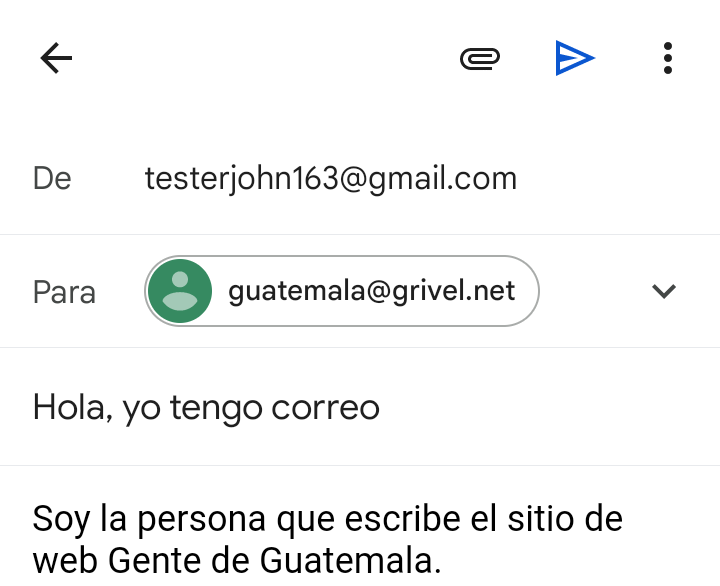
The screen should now look similar to the one shown above. Click on the blue triangle at the top to send the email.
I will respond to your email when I receive it. Feel free to connect with me on WhatsApp to ask me to check my email, but I only have access to email when I'm at home, so you may have to wait a little bit.
When I send my response, you should be seeing it in your "inbox", which is the place where all new email arrives. You can also go to your inbox by clicking on the envelop icon at the bottom of the screen.
Reply, Reply All, and Forward
There are three things you can do with email you receive: you can Reply, you can Reply All, and you can Forward. These are the differences between the three:
- When you Reply, you are sending an email back to only the person who sent you the email. This is fine when the email goes between you and one other person, but many emails are send to a group of people, and with Reply the rest of the group does not get your response.
- Reply All is what you would normally do. This allows you to respond to the whole group of people on the email. Make a habit of using Reply All normally, so people don’t accidentally get left out.
-
Forward is different from Reply and Reply All. With Forward, you
send the email to a different group of people than those who are
already on it.
- Do not use Forward if you want to include more people in the conversation. Instead, use Reply All and add the additional people to the "To" line.
- If you received documents or photos with the email (“attachments”, more about those later) Forward will again include those. With Reply and Reply All, the documents are not include.
You select how to respond to an email through the selection at the bottom.

The default is (appropriately) Reply All; you can change this by clicking on the little downward-pointing triangle, where you can choose between the different options.
To, Cc, and Bcc
There are three ways to specify who to send an email two. The normal way is to send an email To one or more people; in Gmail, this is depicted with the little arrow (or double arrow) pointing to the left.
The Cc option is very similar to "To" and works the same. The only difference is that with "Cc" you tell the person you’re sending the email to that they are just on their for their information (“Cc” stands for “Carbon copy”), they are not expected to do anything with it. People often “Cc” their boss or supervisor on work emails.
The Bcc option is very different. People you put on the Bcc list will get your email, but nobody will see that they got the email, and they will not be included in responses. This is something you use very rarely, but sometimes it can be useful.
Saving Email in Folders
...description still to come...
Attachments: Documents, Photos
...description still to come...
Spam
...description still to come...